Output Modules / grandMA2
grandMA2
The grandMA2 module supports the following data from Reaper:
• Marker Name
• Marker Timecode
• Marker Color
grandMA2 Popup
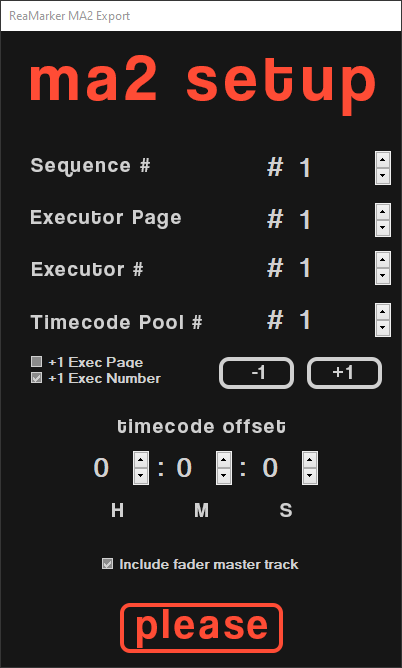
The grandMA2 output module will generate two files:
• Yourprojectname-macro.xml
• Yourprojectname-timecode.xml
The popup will ask for the following data:
• Sequence Pool Item – The pool item needs to be empty in MA2
• Executor Page
• Executor Number
• Timecode Pool Item – The pool item needs to be empty in MA2
• Timecode Offset – Applies TC offset to the pool item.
• Include fader master track – Check this box if you want to include automation.
Check in the MA2 show file that these entries are available, or the import may not work correctly and/or overwrite data in these locations.
When everything looks good press “Please”.
Import into grandMA2
After generating the files in ReaMarker you need to copy them into the MA2 folders.
The MA2 folder is usually located (onPC) in:
C:\ProgramData\MA Lighting Technologies\grandma
In this folder, open the subfolder that matches your onPC software version.
Copy “YourProjectName-timecode.xml” to the “importexport” folder.
Copy “YourProjectName-macro.xml” to the “macros” folder.
You can add multiple shows and macros at the same time if they have separate names.
DO NOT change the name of the files. If you need a different name, change the Reaper CSV file name before converting it in ReaMarker.
Running the macro
Inside MA2 you will need to import the macro and run it.
To import the macro write the following into the commandline, then press Please:
“import YourProjectName-macro at macro 1”
Change the macro number to a free macro slot of your choice.
Now all you have to do is run the macro and a sequence will be created, assigned to a executor and the timecode-show will be imported.
If you get a sequence and executor but no timecode pool item the “YourProjectName-timecode.xml” is probably not in the “importexport” folder or the name has been changed.
